

Publishing workflows
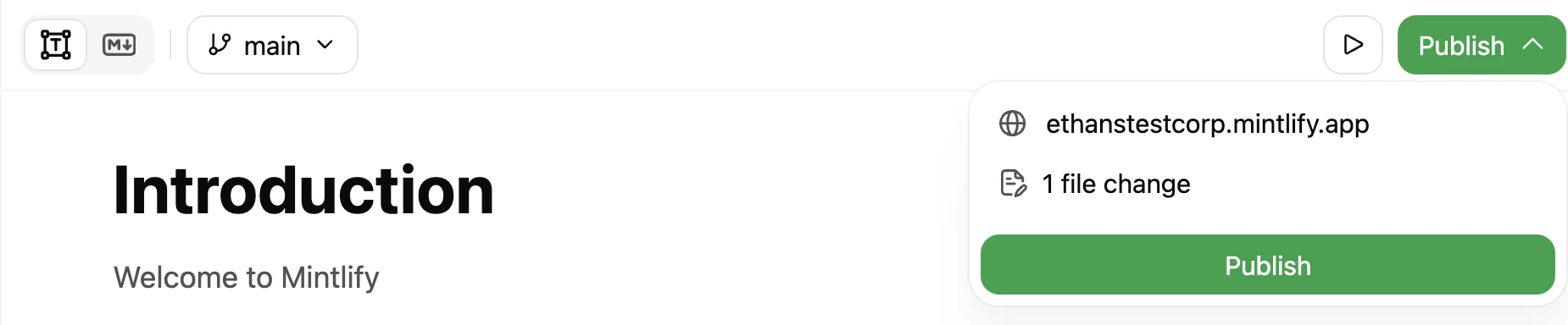
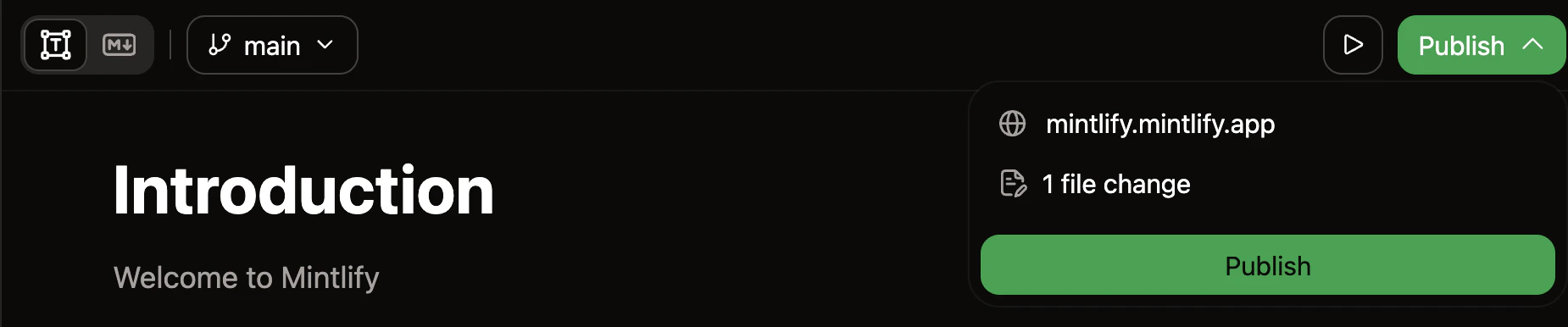
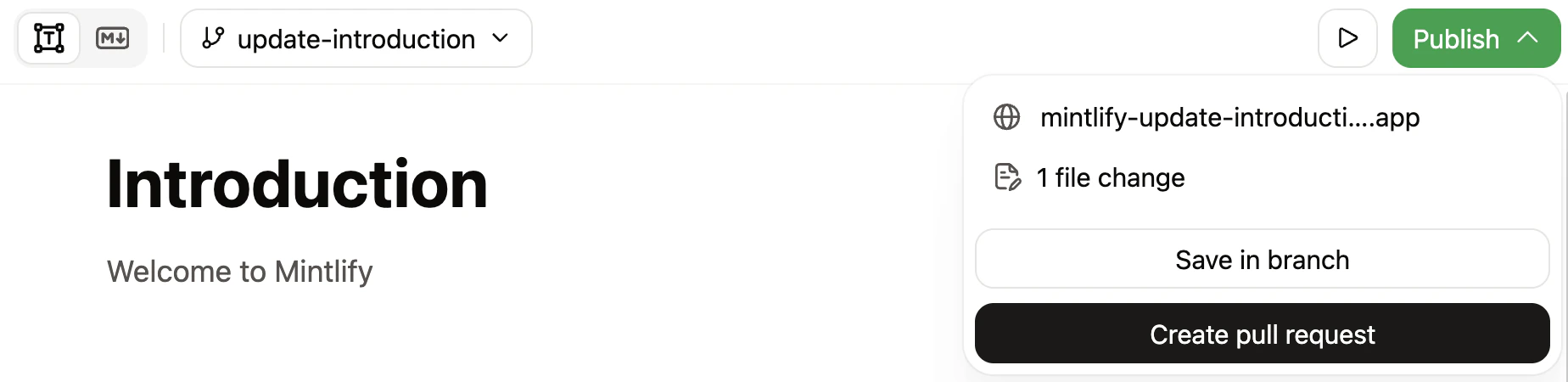
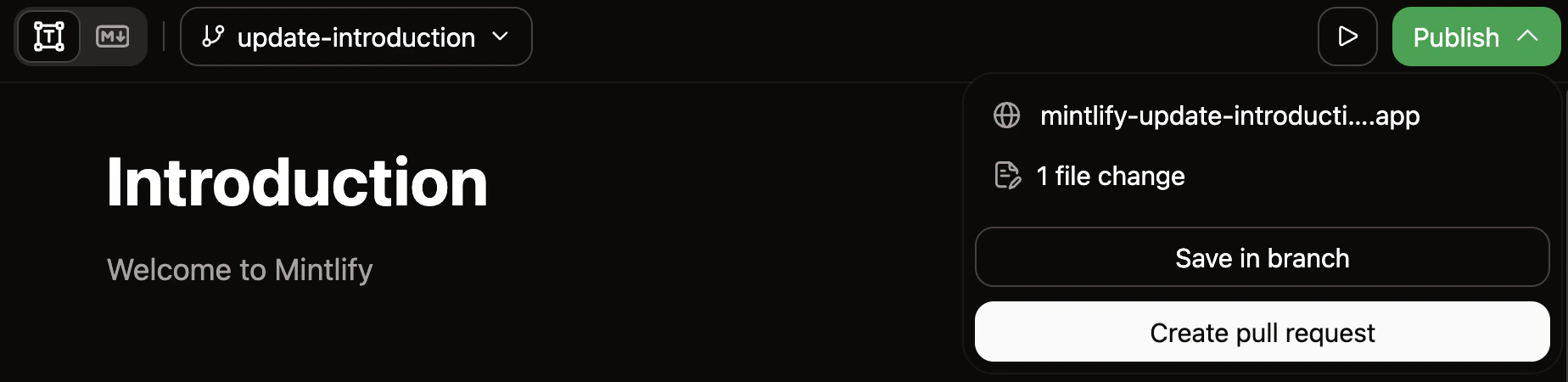
The editor supports two workflows for publishing documentation updates. The workflow you use depends on your repository’s branch protection rules and the branch you work on. Create pull requests: If your repository has a branch protection rule that requires pull requests before changes can merge into your deployment branch, the editor creates a pull request when you publish changes. Publish directly: If your repository has no branch protection rules, your changes merge to the deployment branch and deploy immediately when you publish.| Branch type | Branch protection | Publishing workflow |
|---|---|---|
| None | Commits and deploys changes | |
| Deployment branch | Pull requests required | Creates a pull request |
| None | Merges changes to deployment branch and deploys changes | |
| Feature branch | Pull requests required | Creates a pull request |
Save changes
As you edit, the editor tracks your changes.- New or deleted files.
- Content edits in pages.
- Navigation structure changes.
- Media uploads and organization.
- Configuration updates.
Publish your changes
Click Publish in the toolbar. Depending on your workflow, your changes deploy immediately or create a pull request for you to merge in your Git provider. If you are on a feature branch, save your changes before publishing. If there are no pending changes or a pull request for the current branch is already open, the Publish button is unclickable.Your live documentation site updates after Mintlify builds and deploys your published changes. This typically takes 30 seconds to a few minutes. Check the deployment status of your changes on your dashboard.
Commit messages
When you publish changes, the editor automatically generates a commit message that summarizes your edits. You can customize the commit message before publishing. If your repository enforces a commit message format (for example, Conventional Commits), the editor adjusts the generated message to match the required pattern.Concurrent publishing
Only one publish can happen at a time per branch. If another team member is publishing changes to the same branch, you see a message indicating that a publish is already in progress. Wait for the current publish to complete and try again.Resolve conflicts
Conflicts occur when your branch and the deployment branch have incompatible changes to the same files.What causes conflicts
Conflicts happen when you try to merge branches with incompatible changes to the same files.- You and another team member edit the same lines in a file on different branches.
- You move, rename, or delete files on one branch and modify them differently on another branch.